
If you have different types of candidates or clients, you may have specific checklist items or tags that are only relevant to certain types. You can control which checklist items or tags appear for each type of client or candidate!
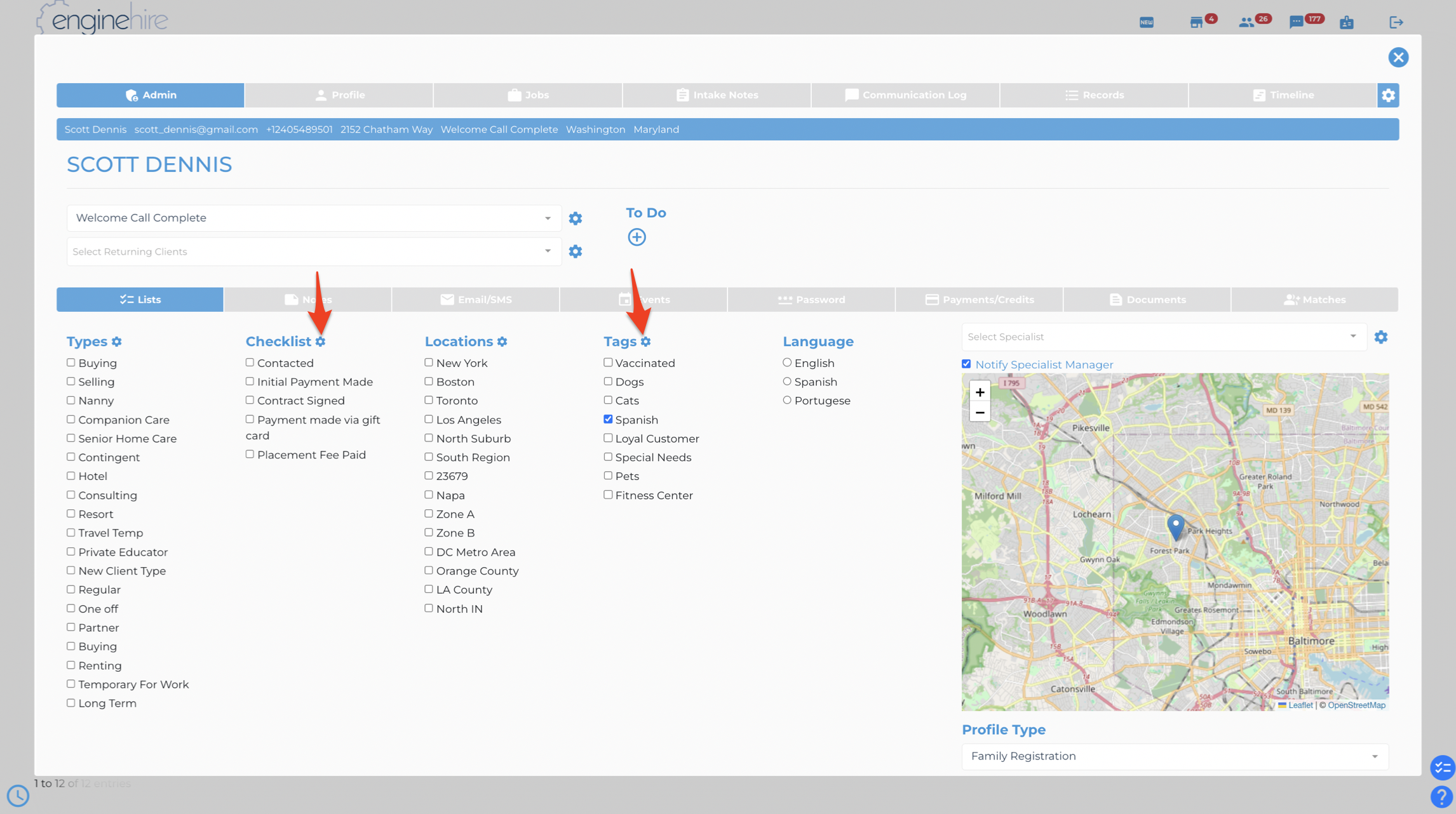
To control the the visibility of checklist items or tags based on the type of candidate or client, please click on the gear icon next to the Checklist or Tags:
At the top you will see the overall list of items, which you can add to, remove, or re-order. If you scroll down you will see that for each checklist item or tag, you can select which types of candidate or client it should be visible for:
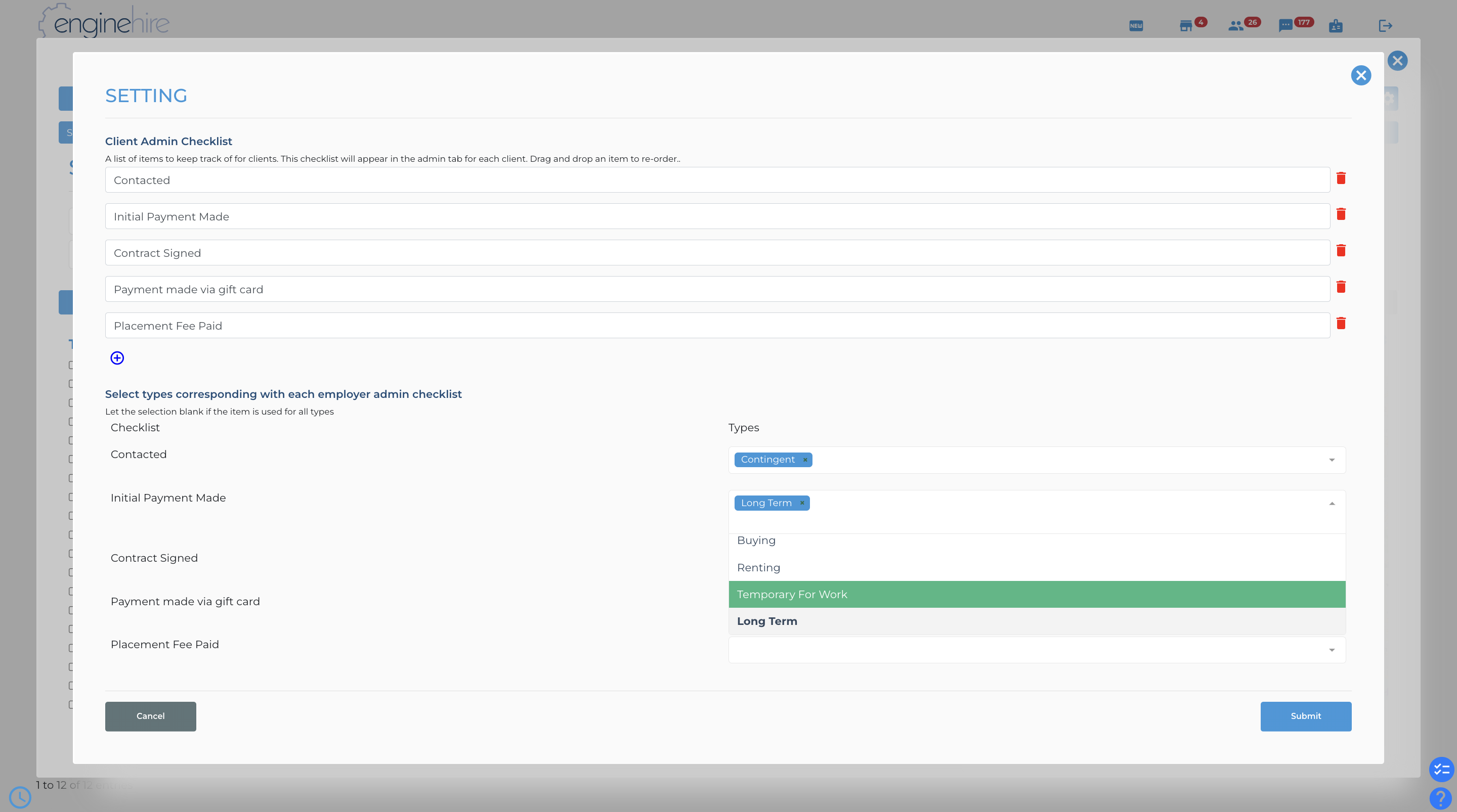
If no types are explicitly selected for a particular item, that item will be visible for all types.