
Use types and tags to categorize your users which can be filtered in searches to find the correct users. Then use checklists to make sure the needed to-dos are accomplished.
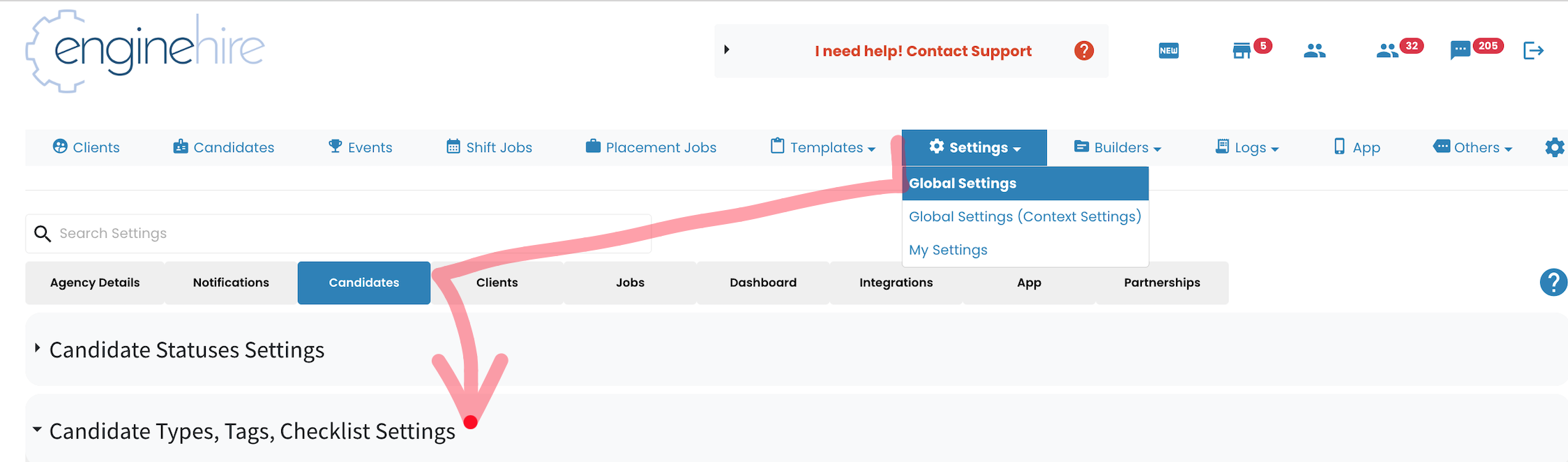
1. From Mission Control Select Settings.
2. Select Global Settings.
3. Select Candidates or Clients to update their Types, Tags, or Checklists. .
4. Select Candidate Types, Tag, Checklists.
WARNING: After initially setting up your system be careful in updating the names of these options. Name changing does not update the name, it makes it a completely new option. Changing a type or a tag will break all of the connections associated with these name.
5. Select the Plus Inside a Circle Icon to add an option.
This section allows you to update
- Admin Checklists associated with the Users but tasks Admins must complete.
- User Personal Checklist. These are to-do users are responsible for and they can see on their profile.
- User Types. Types are kinds of users.
Example:
Nurse
Doctor
Hygienist
Nanny
Sitter
Doula
Office Manager - User Tags. Tags are additional descriptors.
Example:
Willing to Work Overnight.
Intermediate experience.
Willing to Travel
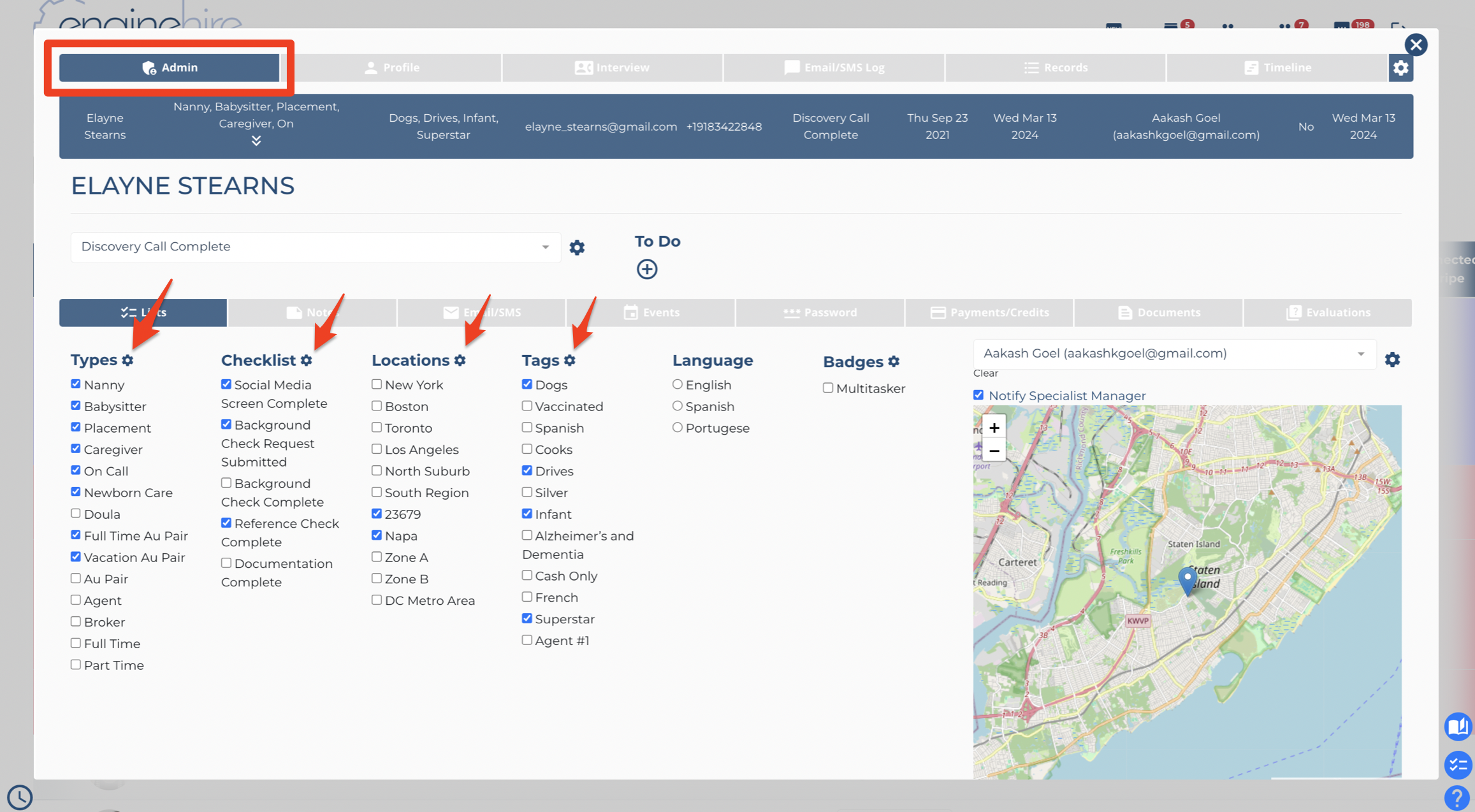
6. View Types, Checklist, Tags, Along with Locations, Languages, Badges under the Admin tab of users.
The following video is from a former Enginehire interface but still explains the concept.
IMPORTANT: If you do edit types & tags, any show conditions, email, or document templates linked to a certain type or tag, must be adjusted as well or the connections will be lost.